
Selecting and editing
Choose the right layer, change its text and move it without fighting the layout.
On this page
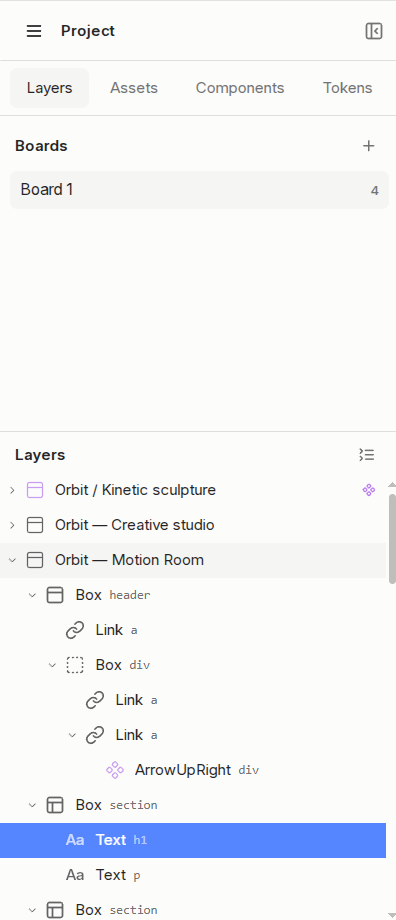
Choose the right layer
Click to select a layer; double-click to move into its contents. Right-click and open Select layer… to choose from the hierarchy. Hover a menu entry to see its target on the canvas. Ctrl/Cmd + right-click opens that hierarchy directly.
Edit text without losing its icon
Double-click supported static text. Headings with line breaks and a link or button with one static label beside an icon can be edited. The icon stays in place. Dynamic expressions and more complex nested text may require Edit Code.
Move, resize or reorder
- Flow layouts
- Dragging reorders elements or moves them between containers. Flex and grid rules still determine their layout.
- Absolute positioning
- Move the element relative to its containing layout; use the guides to align it.
- Resize
- Drag a handle or enter a dimension in the Style panel. Parent constraints may limit the result.
Keep changes reversible
Shift-select multiple elements when needed. Use undo and redo for document changes. A completed drag or resize is one history step.